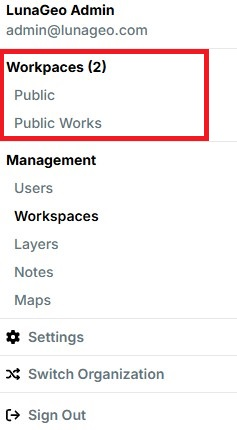
This tutorial explains how a user can switch between LunaMap workspaces.
- Click on the dropdown menu in the top-right of the navbar to view all accessible workspaces. The active workspace is highlighted and marked with a check mark.
- To switch workspaces, click on the desired workspace name in the list. The map page will reload, displaying maps from the selected workspace.
| IMPORTANT If no maps are yet defined for that workspace, you will see only the base OpenStreetMap layer, and the map section will show no maps. Standard and Viewer users will only see the workspaces to which they have been assigned whereas Administrators will see all available workspaces. |