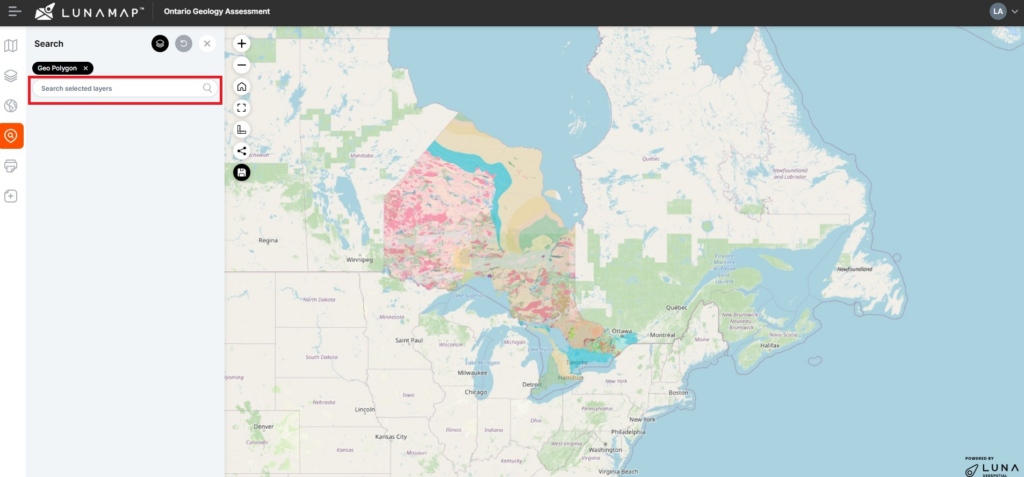
This tutorial explains how to search and zoom in LunaMap. The Search and Zoom tool helps locate features based on a search term. The tool will search the selected layer based on the searchable fields defined in the layer manager. For example, if the “address†field is set as searchable in a parcel dataset, the user could then enter the search term “123†or “123 Acme†to locate the parcel with address “123 Acme Streetâ€.
Searching Features
- On the left navbar, select the Search icon.
- In order to search a layer, the user must first select the searchable layer. Click the Select Layer icon at the top right of the search panel, then choose the layer from the list. Note that only visible layers will be available in the Search tool – i.e. a layer must be on to be searchable.
- In the search bar, enter the search term and the results will automatically appear in cards.
- Click on a card to zoom to that feature.
- To clear the search term and search results, click the Refresh button at the top-right of the Search panel.