
Geoserver can also be used to publish shapefiles, which is best done when the layer itself will not change over time. The process to share a shapefile is similar to sharing a PostGIS layer in that one has to (1) create a store and (2) publish a layer from the store. The only difference is that the data itself needs to be transferred (e.g. via SFTP or FTP) first to the server running Geoserver. Geoserver does not have the capability to upload files through its interface. Proceed to the following steps once the file is uploaded to the server.Â
Part 1. Create a Shapefile Store
1. In Geoserver, click on Data > Stores.
2. Click Add new Store at the top of the page.
3. Under Vector Data Sources, click Shapefile.
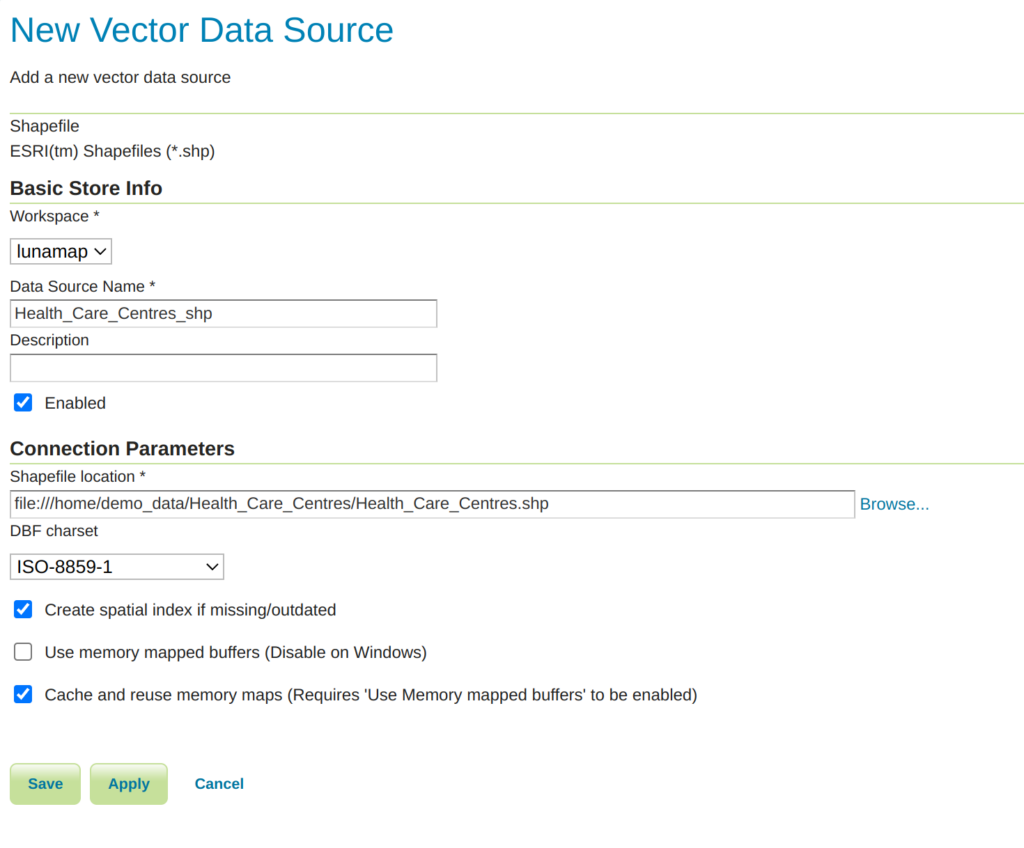
4. On the New Vector Data Source page, enter the following parameters:
- Workspace: Select the target workspace from the Dropdown.
- Data Source Name: name the workspace (lowercase_snake_case is best, though not absolutely required).
- Description: provide a description (optional).
- Shapefile location: navigate to the location where the shapefile is stored on the server, and select the .shp file.
- Leave all other values default.
- Press Save.
- Click Publish on the layer and then proceed to the next section.
Part 2. Publish a Shapefile Layer
Shapefile layers are published when the store is created. Although it is possible to have a store of multiple shapefiles, when following the steps in the previous section, one will be prompted to share the specified shapefile.
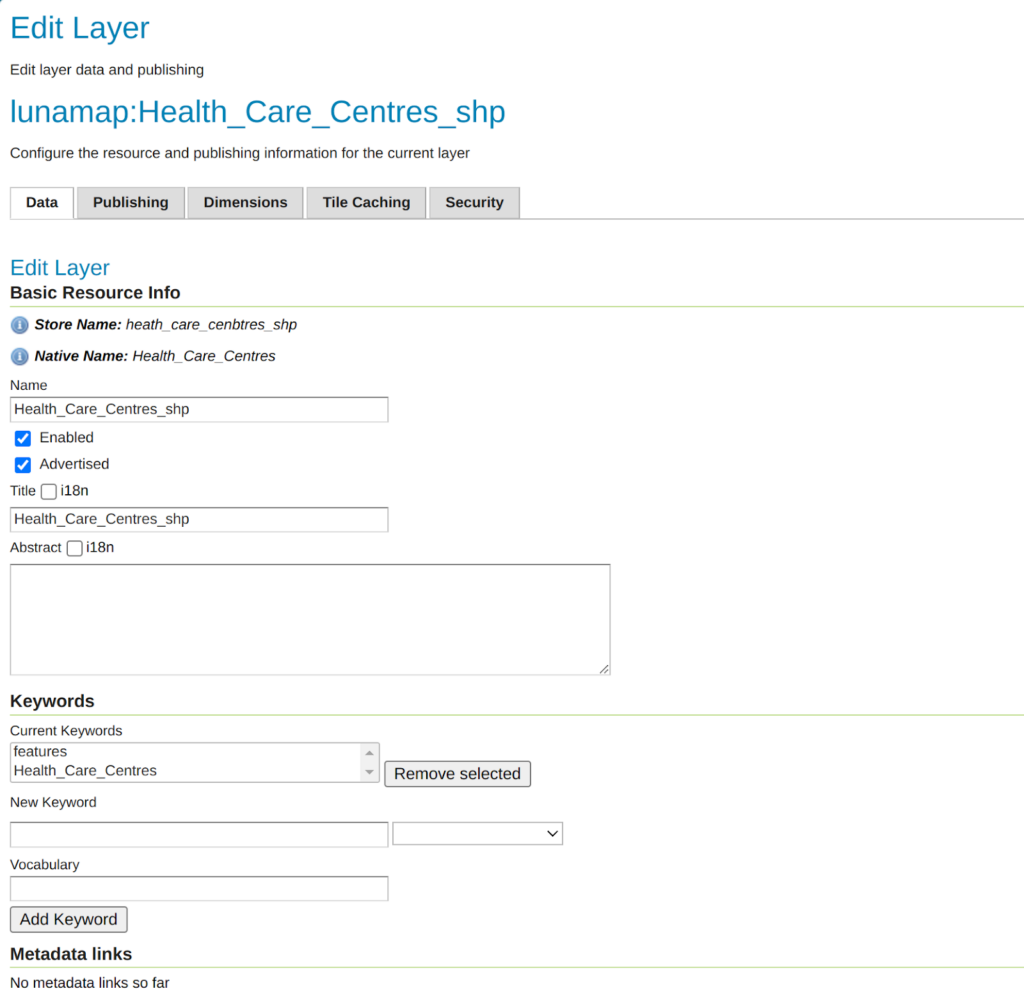
1. On the Edit Layer page, at minimum, set the following parameters:
- Name: use the default or change as desired.
- Title: use the default or change as desired.
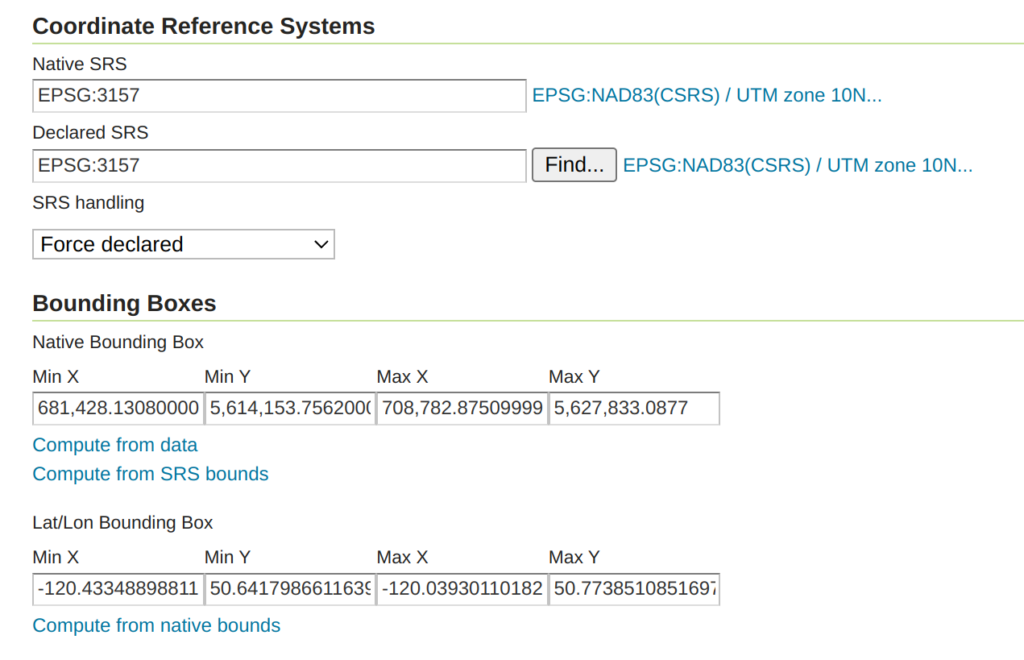
- Coordinate Reference Systems: this can be modified as needed. It is possible to reproject a layer to another CRS, if required.
- Native Bounding Box: Click Compute from data.
- Lat/Lon Bounding Box: Click Compute from native bounds.
2. Click Save.
3. To check if the published layer works as expected, click on Data > Layer Preview
4. Locate the new Layer in the list (there is also a search/filter tool) and click on OpenLayers. A new tab will open containing a WMS layer preview map.
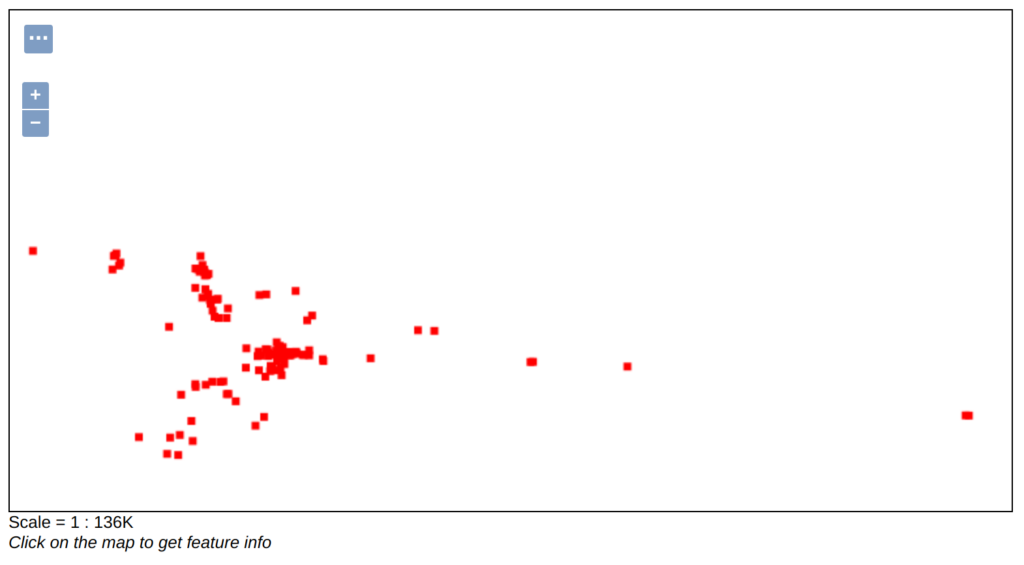
5. Notice that the style applied to the layer is a default style. To create and apply a custom style, see the tutorial entitled Style a Vector Layer in Geoserver.