
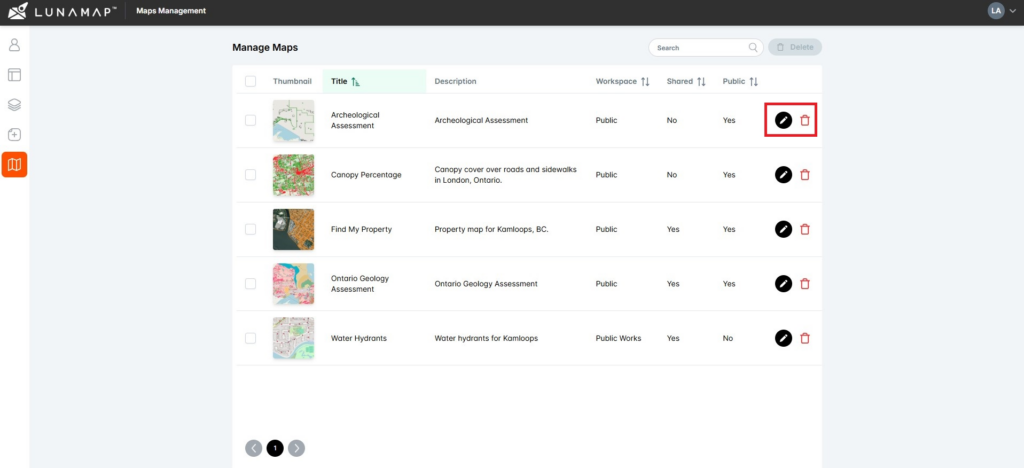
This tutorial explains how to manage maps with the Administrator Tools in LunaMap, namely how to edit or delete existing maps. The Manage Maps page shows all maps in a table that can be easily sorted and searched. The right column contains two action buttons to either edit or delete a map.
Edit Maps
- Log into LunaMap as an administrator and navigate to the Manage Maps page.
- On the Manage Maps page, click on the edit button (pencil icon) next to the map that needs to be edited.
- In the Update Map window, you can modify aspects related to that map including:
- The title of the map.
- The description of the map.
- The map’s access settings.
Delete Maps
- Log into LunaMap as an administrator and navigate to the Manage Maps page.
- On the Manage Maps page of the administrator tools, click on the delete button (trash bin icon) next to the map to be deleted.
- In the confirmation dialog, confirm deletion by clicking on the Delete Map button or click Cancel to abort the deletion.