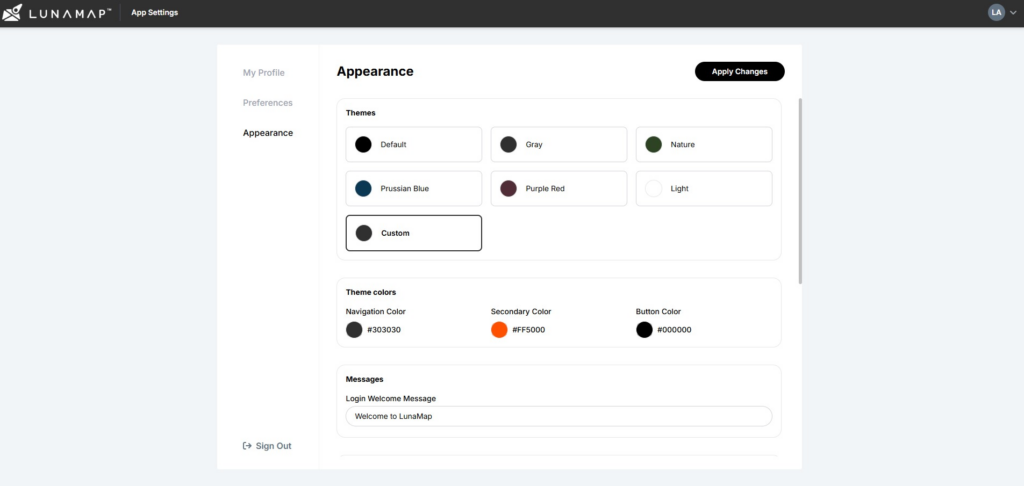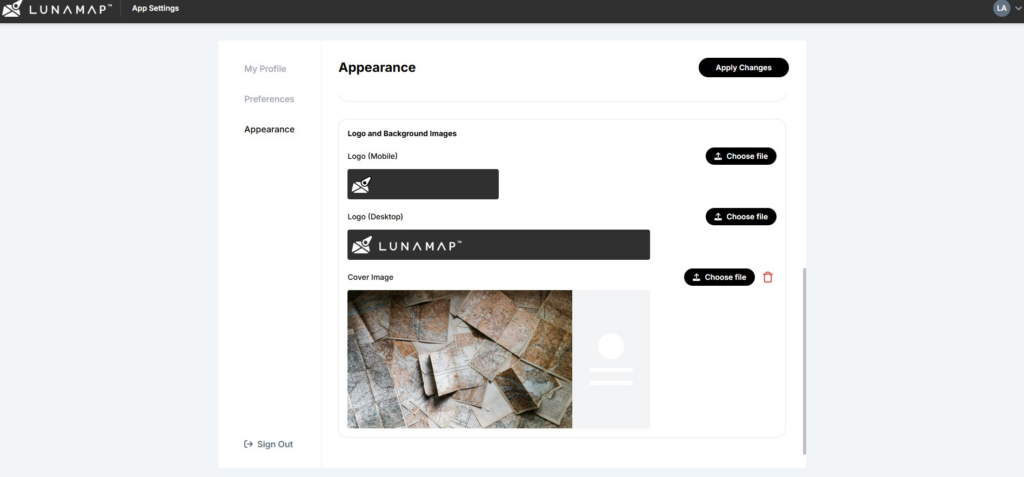
The LunaMap User and Administrator Settings contains three sections, namely (1) My Profile to set user-specific settings, (2) Preferences to set a user-specific workspace and default map, and some application-wide administrator settings and user-specific settings that personalized the experience. The settings include options to update user information, set a default workspace and map, and brand the application’s appearance with custom logos, colour scheme, and text. This ensures that LunaMap aligns seamlessly with individual or organizational branding and workflow needs.
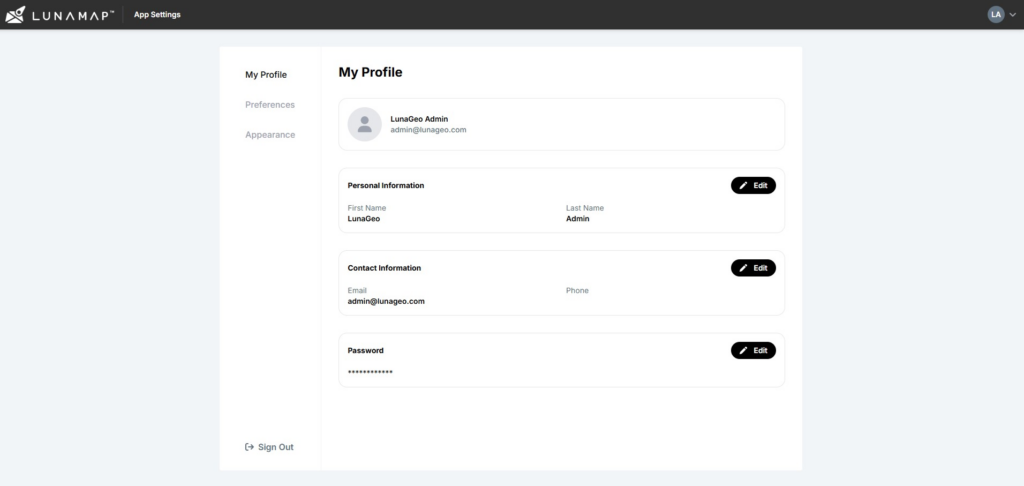
My Profile
- Log into LunaMap as an Administrator.
- Click the dropdown menu in the top-right corner of the navbar and select the Settings option.
- In the Settings window click on My profile option in the left panel.
- Click the Edit button next to Personal Information to update the user’s first and/or last name.
- Click the Edit button next to Contact Information to update the user’s email address and/or phone number.
- Click the Edit button next to Password to update the user’s password.
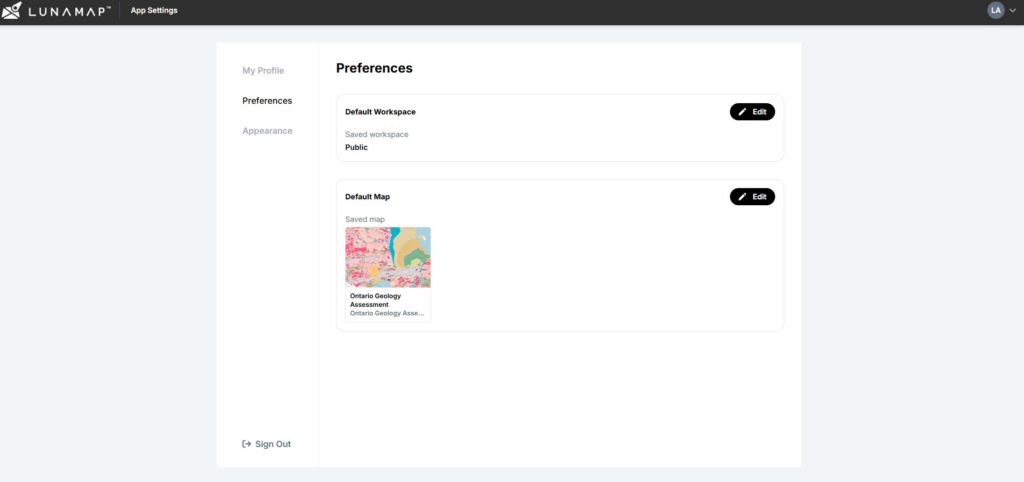
Preferences
- In the Settings window click on the Preferences option in the left panel.
- Click the Edit button next to Default Workspace and select your preferred option from the available choices.
- Click the Edit button next to Default Map and select your preferred option from the available choices.
LunaMap Appearance
The LunaMap Appearance settings allows administrators to brand their LunaMap by adding custom logos, text, and colour schemes.
- In the Settings window click on the Appearance option in the left panel.
- Select a theme from the available options under Themes.
- In Theme Colors, configure the Navigation Color, Secondary Color, and Button Color to align with your institution’s preferences.
- Enter the desired welcome message in the Messages field.
- Upload the logo to be displayed on mobile devices.
- Upload the logo to be displayed on desktop devices.
- Upload the image to be used as the cover image.
- Click the Apply Changes button in the top-right corner to save the updates.