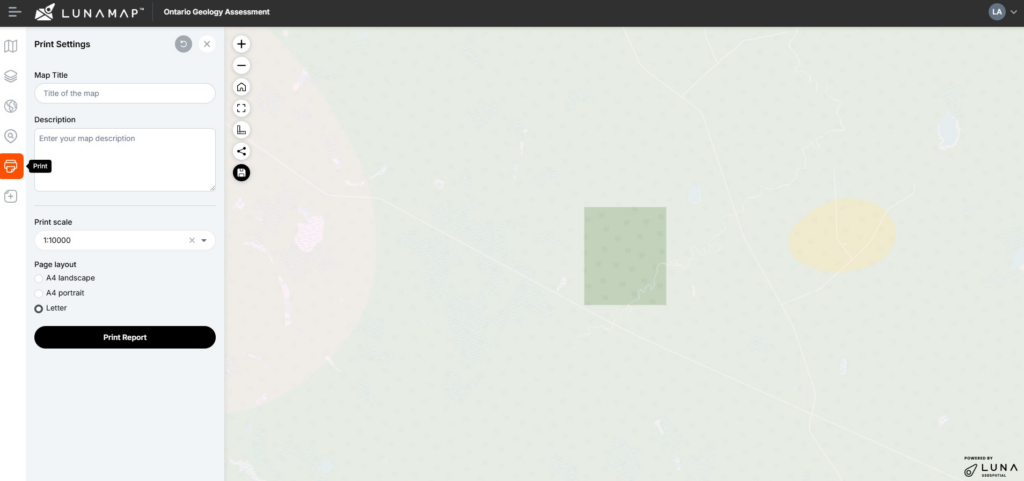
This tutorial explains how to export to PDF with LunaMap. The Print tool in LunaMap allows users to create and download custom PDF maps. By selecting the desired map, setting a title, description, print scale, and page layout, users can generate a professional layout.
Export to PDF
- On the left navbar, open the Print panel.
- When the print panel is open, a rectangular print area indicator appears on the map.
- Select the Print Scale from the dropdown menu. This will change the size of the print area.
- Pan and zoom to centre the map at the desired location within the print area indicator.
- In the Print settings panel, enter the following details:
- Provide a Map Title for the map layout.
- Add a Description for the map layout.
- Choose the Page Layout from the available options.
- Click on the Print Report button to download PDF of the map layout.
- Note that it may take a moment for the map to be generated.