- Log into LunaMap as an Administrator. Only Administrators can edit a workspace in LunaMap.
- Click on the dropdown menu on the top right of the navbar and then click on Workspaces.
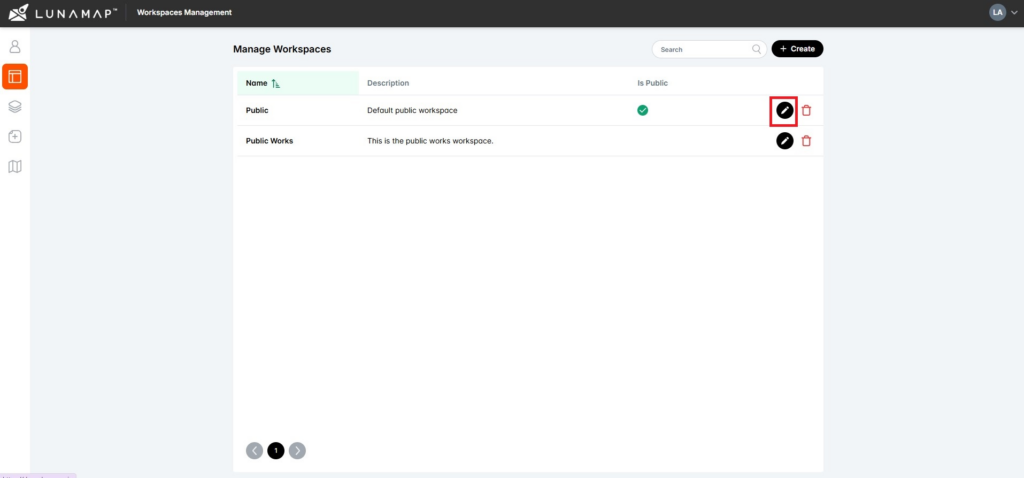
- In the Manage Workspaces section of the administrator tools, click on the edit button (pencil icon) next to the workspace that needs to be edited.
- In the edit workspace window, one can make two main types of changes:
- Edit the workspace description.
- Manage user access to the workspace.
Edit workspace information
- Log into LunaMap as an Administrator. Only Administrators can edit a workspace in LunaMap.
- Click on the dropdown menu on the top right of the navbar and then click on Workspaces.
- On the “Manage Workspaces†page, click on the edit button (Pencil icon) for the Workspace you wish to edit. The workspace information page will appear.
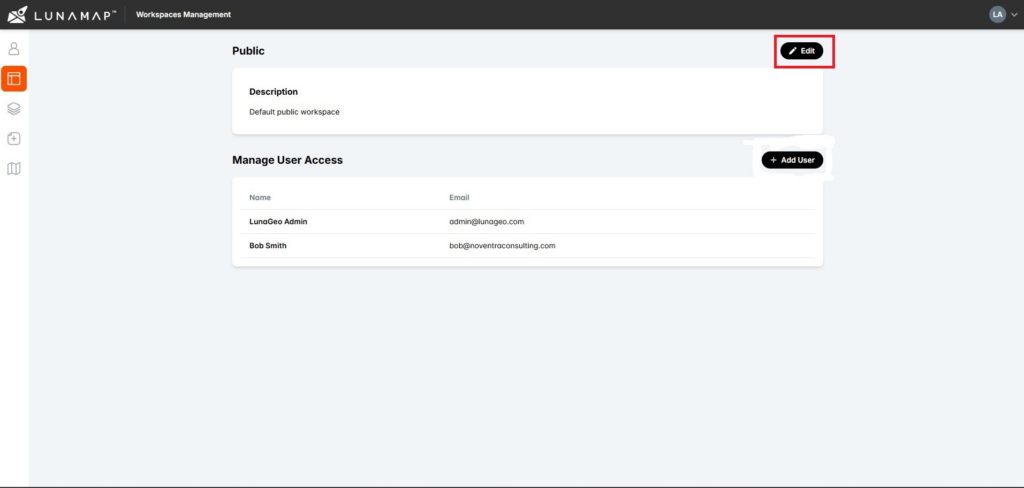
- On the top right of the workspace information page, click on the Edit button.
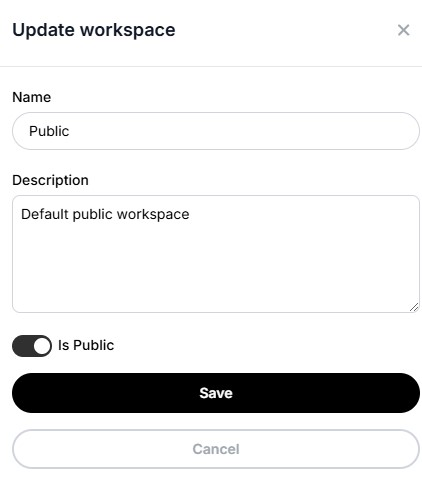
- In the update workspace dialog box users can modify workspace details, namely::
- The name of the workspace
- The description of the workspace
- The public/private status of the workspace
- To save changes, click Save. To exit the dialog box without saving, click Cancel.
Add users to the workspace
- Log into LunaMap as an Administrator. Only Administrators can edit a workspace in LunaMap.
- Click on the dropdown menu on the top right of the navbar and then click on Workspaces.
- On the “Manage Workspaces†page, click on the edit button (Pencil icon) for the Workspace you wish to edit. The workspace information page will appear.
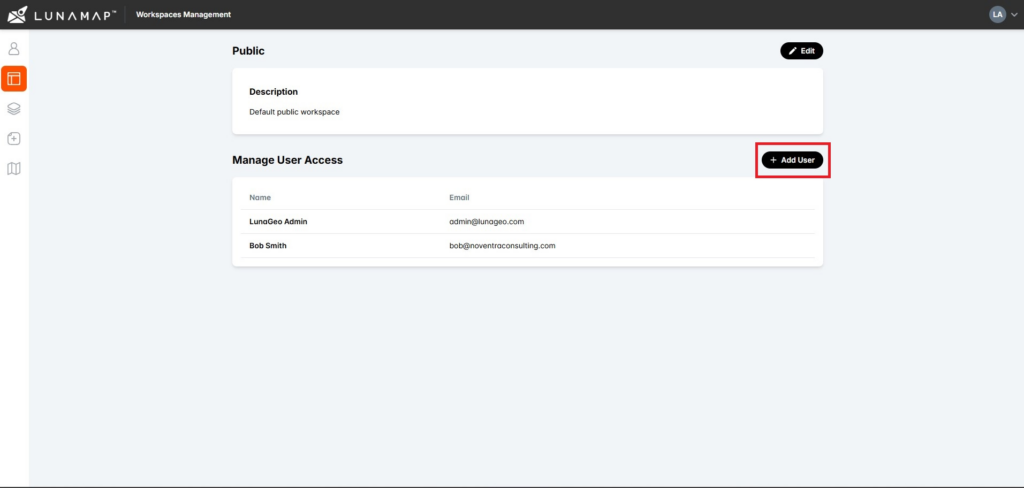
- Click on the Add User button to open the Add User to Workspace dialog.
- Select a user from the dropdown menu or filter for a user by typing in the input textbox.
- Click to select the user to be added to the workspace.
- To save changes, click Save. To exit the dialog box without saving, click Cancel.
| IMPORTANT Once a user is added to a workspace, they will automatically get access to all maps and layers within it. |