This tutorial explains how administrators can permanently delete a LunaMap workspace. Since this action cannot be undone, it is restricted to users with Administrator permissions.
- Log into LunaMap as an Administrator. Only Administrators can delete a workspace in LunaMap.
- Click on the dropdown menu on the top right of the navbar and then click on Workspaces.
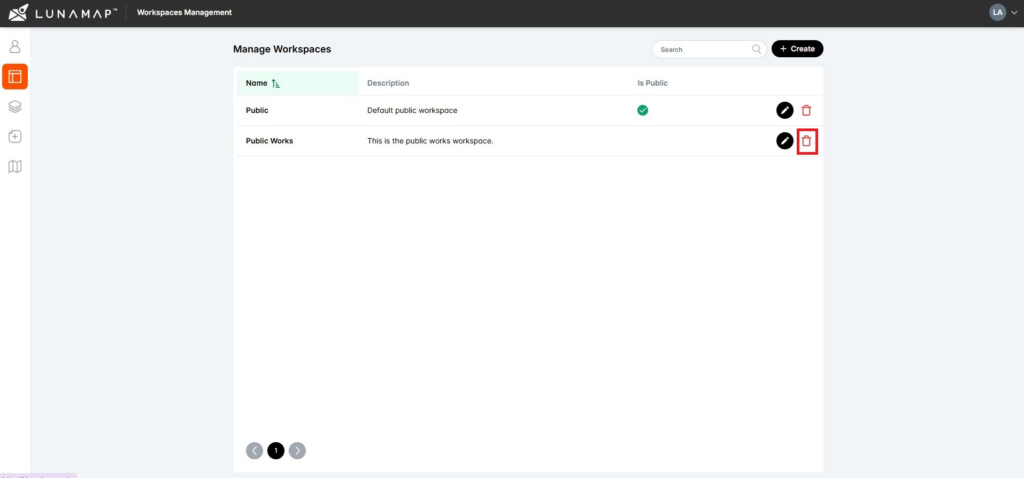
- In the Manage Workspaces section of the administrator tools, click on the delete button (trash bin icon) next to the workspace that needs to be deleted.
- In the confirmation dialog, confirm deletion by clicking on the Delete Workspace button.
IMPORTANT
- Please be aware that by deleting the workspace, you are also deleting all the maps within the workspace! This action cannot be undone.