
Update Maps in LunaMap
This tutorial explains how to update maps in LunaMap. Every map may contain multiple layers with different settings, such as z-order, opacity, and more. Saving a map will preserve all these configurations so the map is displayed consistently each time it is loaded. Follow these instructions to save changes to a map:
- Log into LunaMap as an administrator or map owner.
- Open a map and make some changes, such as changing the z-order of the layer, changing a layer’s opacity, or adding a new layer to the map.
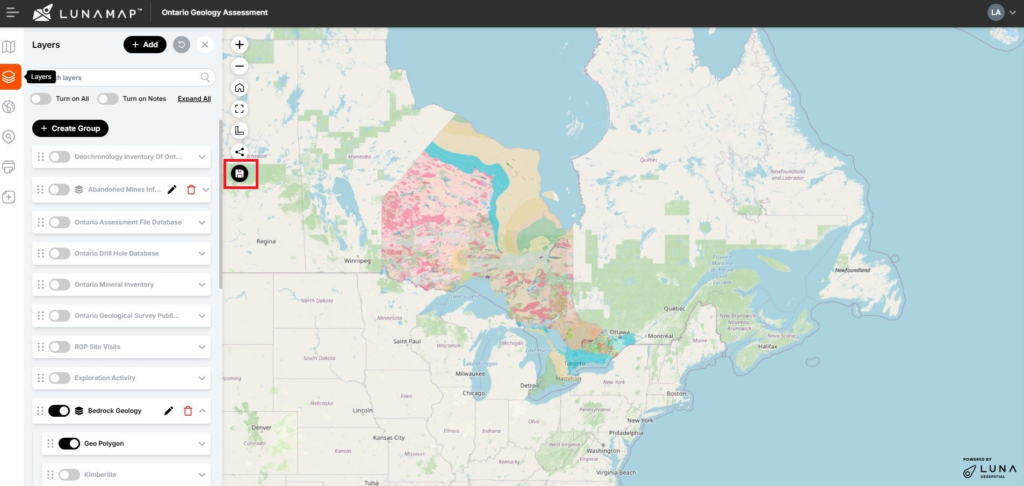
- Note that a floppy disk icon will appear on the top navbar when changes have been made to a map by the map owner or administrator.
- Click on the “Save” button (floppy disk icon) on the left side of the map view to save the changes. There are two options:
- Save: This option directly saves the existing map configuration for the active map.
- Save As: This option allows you to create a new map based on the existing one, inheriting all the same settings. If you choose this option, an additional dialog box will appear where you can specify a custom name and description for the new map.
| IMPORTANTOnly Administrators or map owners can save changes on a map. It is always possible to NOT save changes to a map when prompted to save. |
How can we help?
Contact us today to schedule a free consultation with a member of our team.