
Layer Groups in Geoserver
This tutorial details how to create Layer Groups in Geoserver to publish a group of layers as a single service. A Layer Group can contain both vector and raster data sources and can be accessed via a single WMS request, so it acts like a single layer.
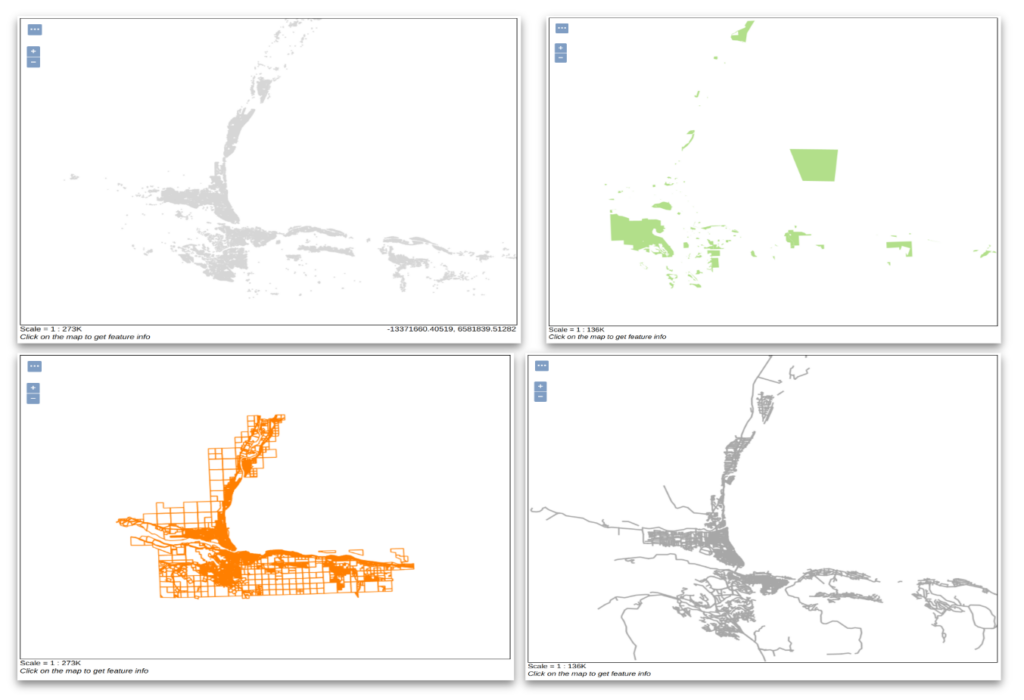
1. Publish and style each layer that will be used in the Group Layer. In the example below. the streets, parcels, parks, and buildings were published and styled for Kamloops, BC.
2. In Geoserver, navigate to Data > Layer Groups.
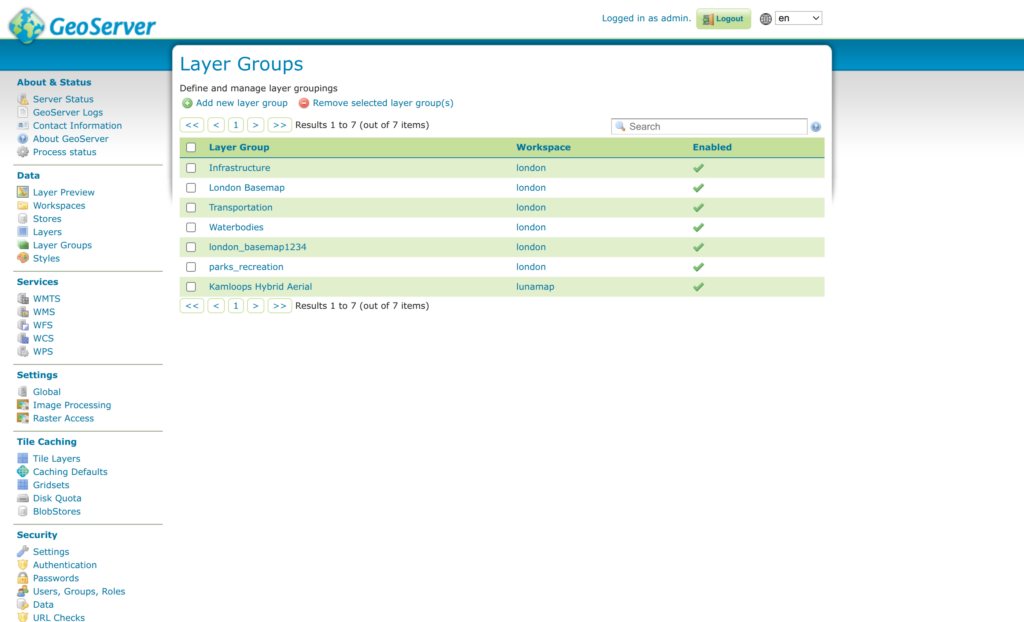
3. On the Layer Groups page, click Add new layer group.
4. Enter the following parameters:
- Name: enter a name for the layer group.
- Title: enter a title for the layer group.
- Abstract: enter an abstract for the layer group (optional)
- Bounds: after loading the layers, select Generate Bounds.
- Mode: keep as single in most cases. See Geoserver documentation for more information on this setting.
- Layers: Click Add Layer… to add layers to the group. Once added, adjust the drawing order as needed. Once layers are added, click Generate Bounds in the Bounds section.
- Click Save.

5. On the Geoserver left menu, click on Layer Preview and preview the new Group Layer.
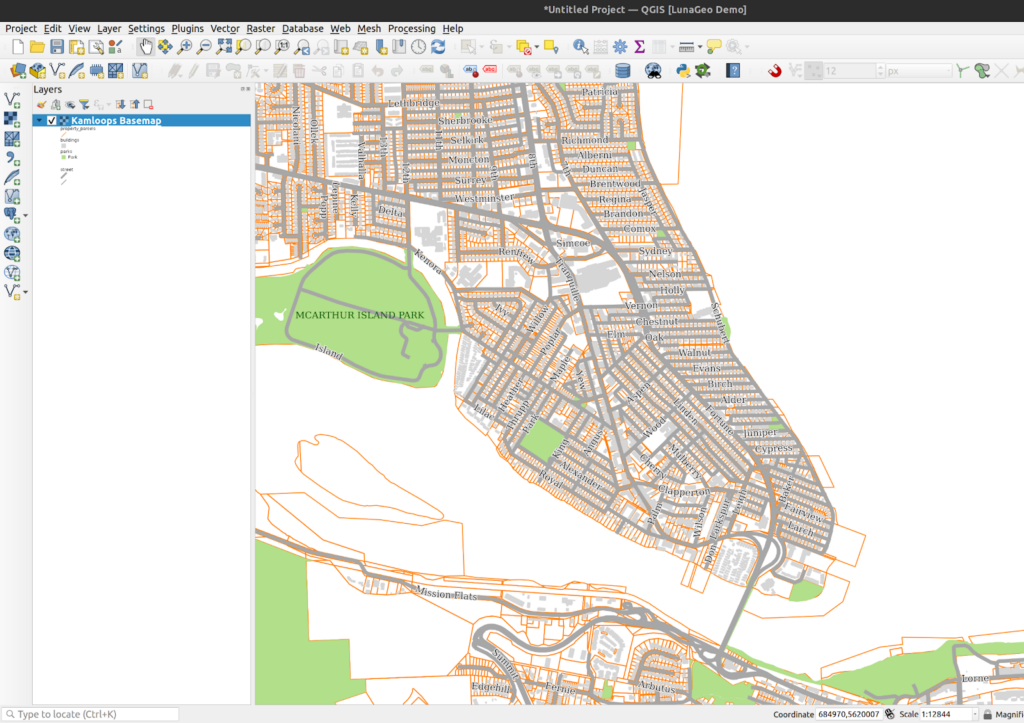
6. The new group layer can also be loaded as a WMS layer in QGIS or in any client that support WMS or WMTS.
How can we help?
Contact us today to schedule a free consultation with a member of our team.