
Attributes Table in LunaMap
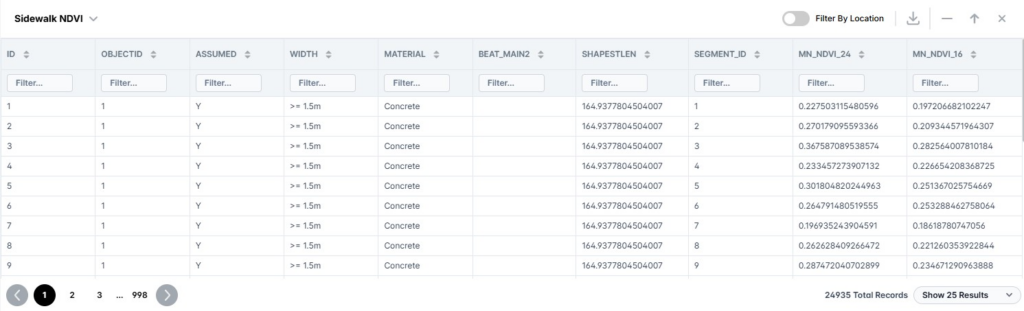
The Attributes Table in LunaMap contains the following features and capabilities:
- The attributes for any vector layer can be viewed in the Attributes Table.
- The attributes panel contains a top navbar that gives the following options.:
- A toggle to switch between any vector layer that is currently toggled on.
- The ability to filter attributes by location.
- The ability to clear any filters.
- The option to open the attributes panel either partially or at full vertical height.
- The ability to download the attribute data as a CSV file.
- The X button to close the attributes table.
- The Attributes Table itself has the following capabilities:
- Filter columns by search term.
- Sort columns alphanumerically in ascending or descending order.
- Click and zoom functionality on any row to allow users to quickly explore the spatial and tabular data.
- Bottom navbar has the following capabilities:
- Allows users to navigate through the paginated results.
- See the total number of records
- Specify how many results to view in the table (10, 25, or 50).
Opening the Attribute Table
- On the map page, open the Layers panel on the left navbar.
- Locate the layer for which the attribute table is to be viewed.
- On the layer card, click on the Attribute Table button (the table icon). The attributes table will then open for that layer.
- To close the attributes table, either click the X button on the top-right corner of the attributes panel or click the Attributes Table button on the layer card again.
Filtering Attributes
- Open an Attributes Table.
- There are two options to filter features:
- Each column can be filtered by a search term. Simply type in the column filter textbox and the attributes will filter based on the user input. It is also possible to filter multiple columns simultaneously.
- Attributes can be filtered by location, which means that the only attributes that will show in the table are those that correlate to features on the current position of the map (e.g. if the map shows two features, only those two rows will appear in the attributes table). To enable this feature, toggle the “Filter by location” setting in the top attribute panel navbar.
- Note that filters will persist even if the attributes table is closed.
- There are two ways to clear a filter:
How can we help?
Contact us today to schedule a free consultation with a member of our team.