
Map Notes in LunaMap
Map Notes in LunaMap allow users to mark specific points on the map and add descriptive information about each point. This feature is useful for annotating locations, providing context, and organizing spatial data with additional details, helping to enhance map interactivity and information sharing. Map Notes are related to the map itself, so a note created for Map X will only be visible if Map X is open.
Map Notes Panel
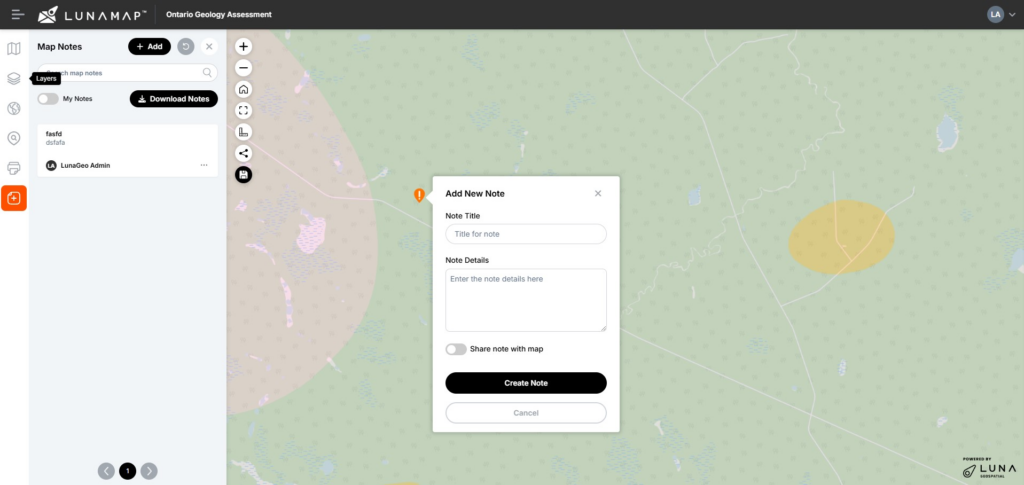
The Map Notes Panel contains the following features and capabilities:
- The Add button to add a new note.
- The Reset button to reset any filters applies to the map notes.
- The X button to close the Map Notes panel
- The Search map notes search bar to filter map notes based on a search term.
- The My Notes toggle to only view notes created by the logged in user.
Click and zoom functionality to navigate to the map note location.
Permissions and Map Notes
- Map Notes are owned by the note creator.
- Only the note creator or an administrator can update or delete a map note.
- Map Notes are related to the map itself, so a note created for Map X will only be visible if Map X is open.
- Map Notes can be shared (visible to other users) or kept private (visible only to the note creator and administrators).
Adding Map Notes
- Open LunaMap and navigate to the maps page.
- On the left navbar, click on the Notes icon to open the Map Notes panel.
- Pan/Zoom to the desired location for the note marker.
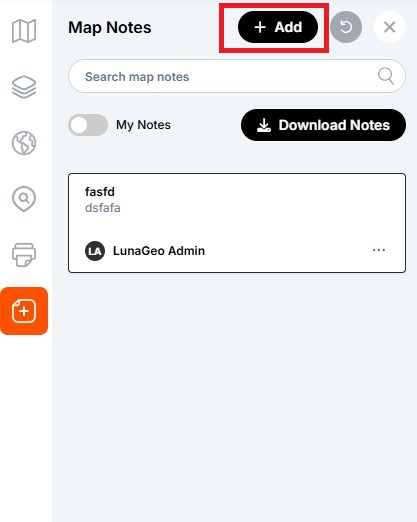
- Click on the Add button on top of the Map Notes panel and click on the map to place a marker on the desired location.
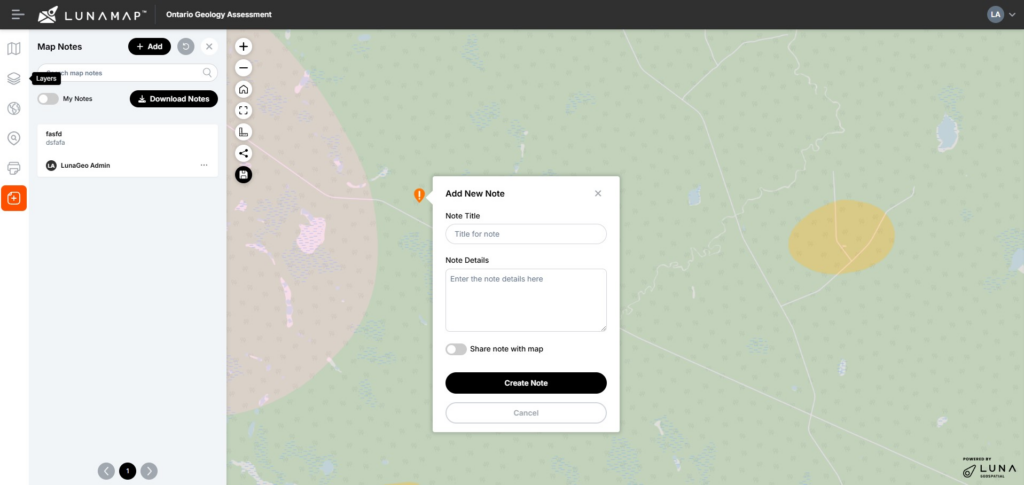
- In the Add New Note dialogue box enter the following details:
- Provide a Note Title for the note.
- Add text in the Note Details section.
- Toggle “Share note with map” to make the note available to all users who have access to the map.
- Click the Create Note button to save the note or click Cancel to abort the process.
Edit a Note
- From the map page, open the Map Notes panel from the left navbar.
- Locate the note to be edited.
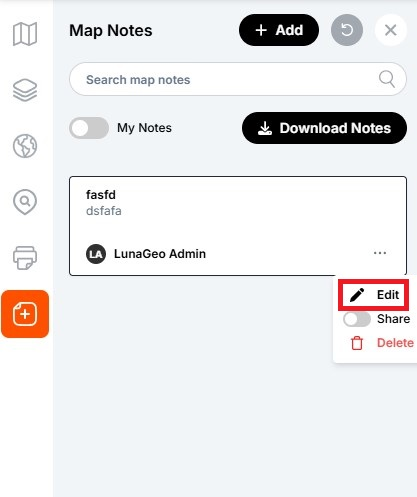
- In the bottom-right corner of the Map Note card, click on the dropdown menu and click on Edit.
- In the “Edit Map Note” dialogue box, edit the required fields or change the sharing status with the toggle.
- Click Save to update the map note or click Cancel to abort the operation.
Delete a Note
- From the map page, open the Map Notes panel from the left navbar.
- Locate the note to be deleted.
- In the bottom-right corner of the Map Note card, click on the dropdown menu and click on Delete.
- In the confirmation dialog, confirm the deletion by clicking the “Delete Note” button or click the Cancel button to abort the deletion.
Manage Notes from the Administrator Tools
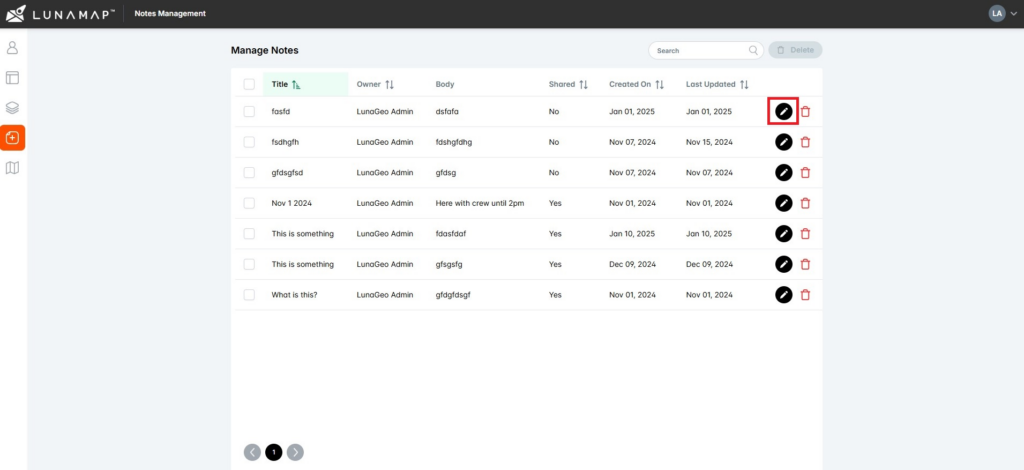
Map Notes can also be edited via the Manage Notes section of the administrator tools. The Manage Notes page can be used to (1) locate notes by search term or by sorting columns, (2) edit map notes, and (3) delete map notes. Only administrators can access the Manage Notes page and they have the ability to modify and delete any notes within the system.
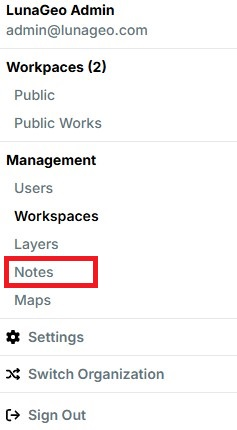
Edit a Map Note from the Administrator Tools
- In the Manage Notes section of the administrator tools, click on the edit button (pencil icon) next to the note that needs to be edited.
- In the Update note dialog box, modify the note title, details, and/or sharing settings.
- Click the Save button to save the change or click the Cancel button to abort the changes.
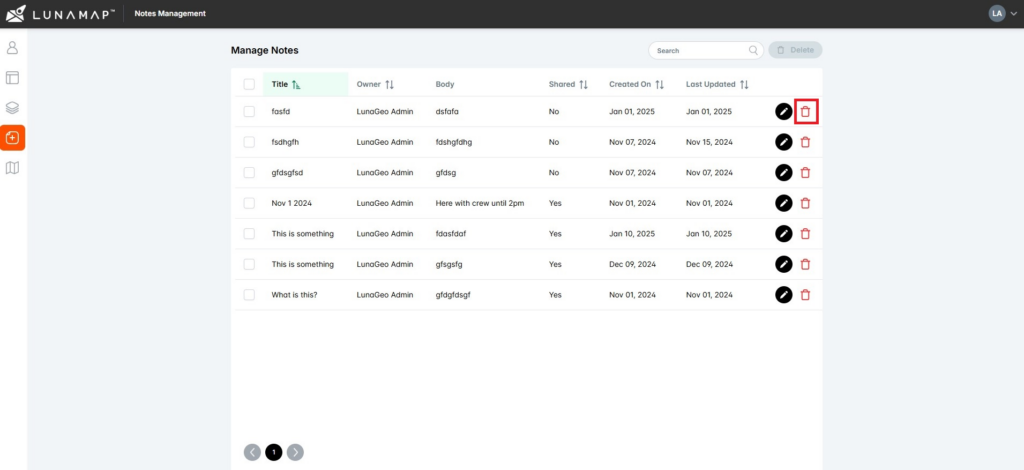
Delete Map Note from the Administrator Tools
- In the Manage Notes section of the administrator tools, click on the delete button (trash bin icon) next to the note that needs to be deleted.
- In the confirmation dialog, click the Delete button to confirm the deletion or click the Cancel button to abort the deletion.
How can we help?
Contact us today to schedule a free consultation with a member of our team.